
Upload to InnerTube
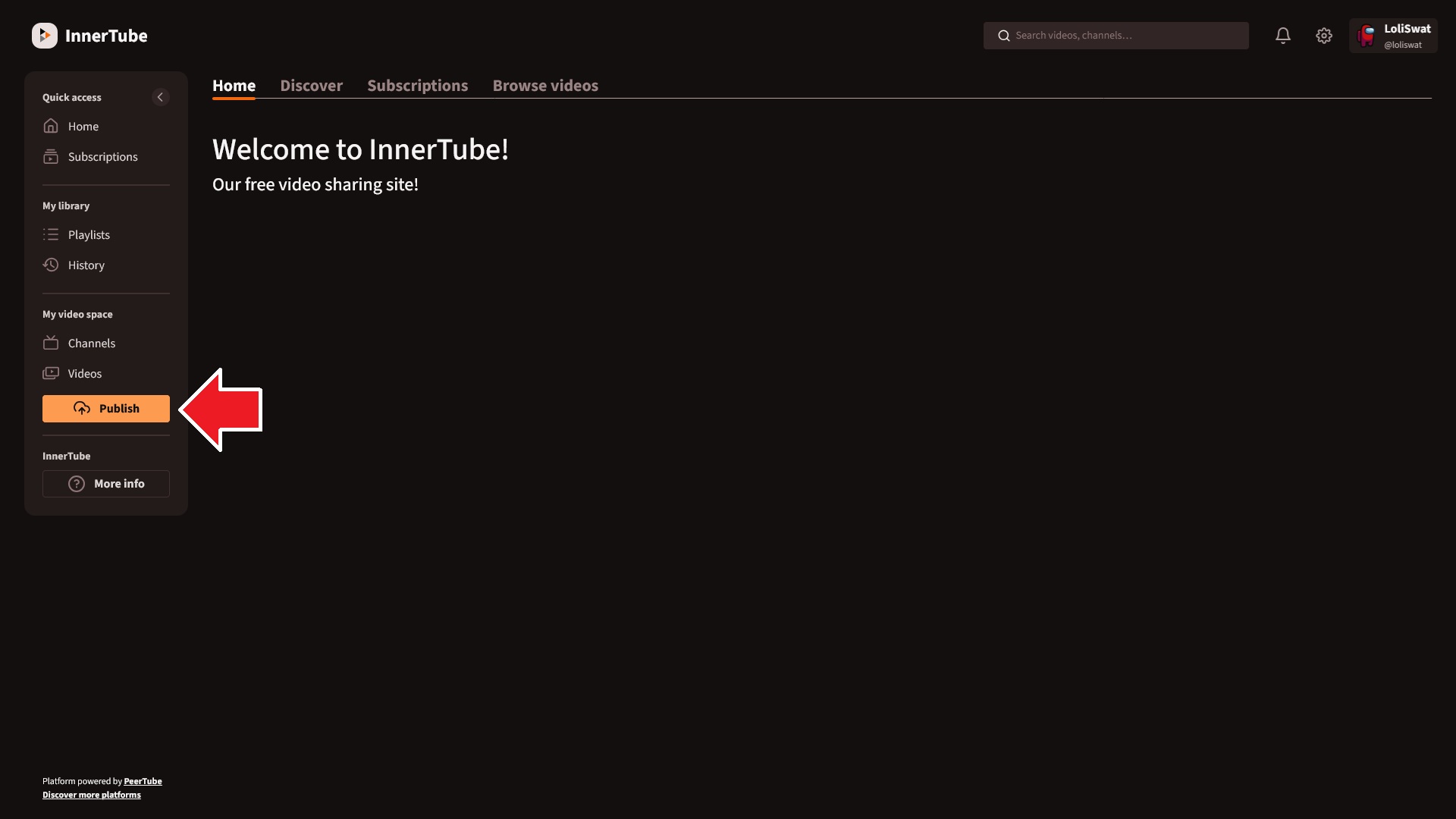
Step 1: Click the Publish button.
Find the Publish button and click it. It should be a noticeable button on the left sidebar.
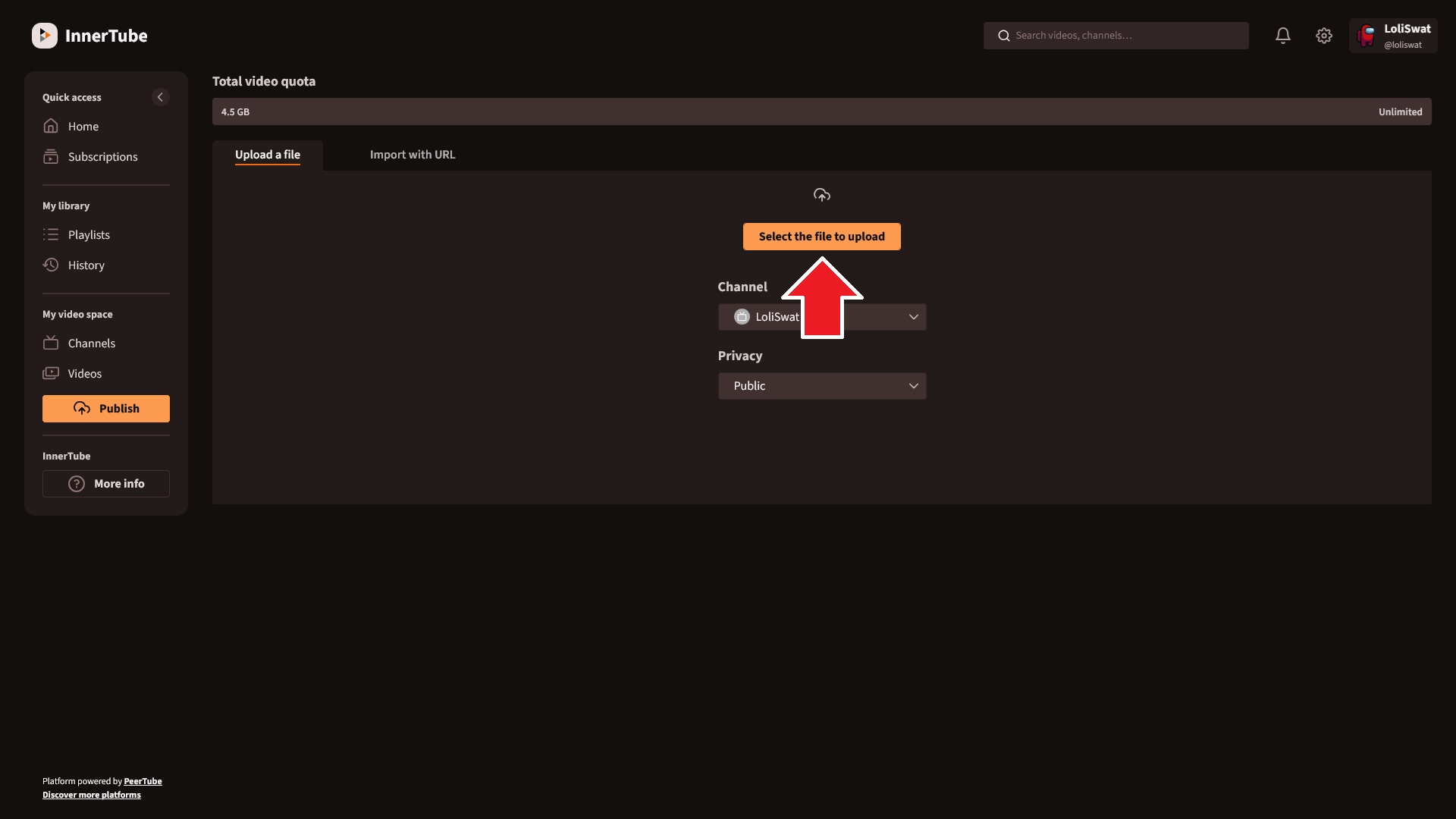
Step 2: Click the "Select the file to upload" button.
Click the self-descriptive button to upload a file. A File Explorer window will open.
Before selecting your file, you can select the desired channel and privacy for the video. Don't worry, these settings can be changed during or after the upload as well.
Step 3: Enter Video Information
After you select a file to upload, you will be brought to a new page. This page allows you to set up information for your video such as its title, a description, and much more. You should probably customize the title and add a description.
The "Publish after transcoding" setting is enabled by default. We recommend that you don't disable this setting. This setting will wait until the entire transcoding process for your video si complete before making it visible to others on the platform. If you disable it, your video will appear for others after it uploads but nobody will be able to watch it since transcoding hasn't finished.
Step 4: Click Publish!
Once you have everything set, you can click the Publish button.
About Transcoding
Every video uploaded to InnerTube goes through a process called transcoding. Each video will be transcoded several times under different resolutions. Transcoding provides several benefits (better online streaming and playback compatibility, allows watching videos in various resolutions, reduces used storage space), but transcoding takes time. After your file finishes uploading, it may take several minutes before your video can actually be watched. If someone uploads several long videos before you upload your own video, you will have to wait for their videos to finish transcoding before yours will begin. Please allow some time for your videos to transcode.
If Transcoding Fails
In some cases, transcoding may fail. If this happens, there's no need to panic. Simply let me (Max) know and I can restart the transcoding process on your video. It may take some time before transcoding completes.