
Connect to an Unturned Server
[Meta] Please note that this page is missing images. They will be added at a later date.
There are two ways to connect to an Unturned Server.
| Connect |
Server Browser |
| Manually enter a server's connection details. | Find server |
The method which you canchoose really doesn't matter much, but it's probably best to use the Connect Directly option where you manually enter server connection details, such as IP and Port. Unturned's server browser is "easier" to use but it has a rather complex filtering system that will not show our servers when the default filters are used, meaning you must configure them in order to see our server. For this reason alone, we recommend using Connect Directly at least foron your initial connection toand then the Server Browser for subsequent connections.
Online Safety Warning Pop-Up
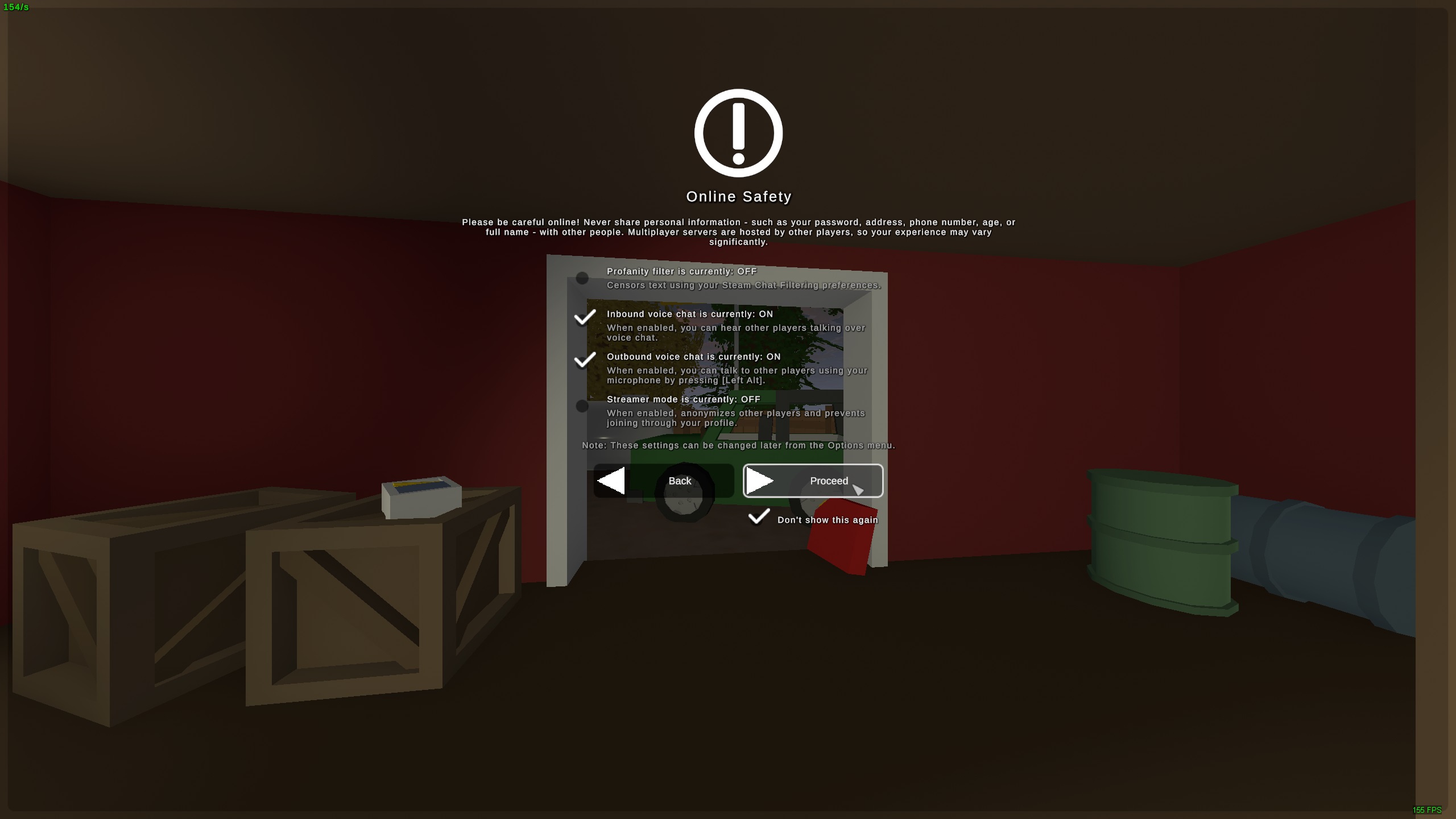
When you first select an online-based option from the Play menu, such as Multiplayer or Connect Directly, you will be shown an Online Safety Warning message.
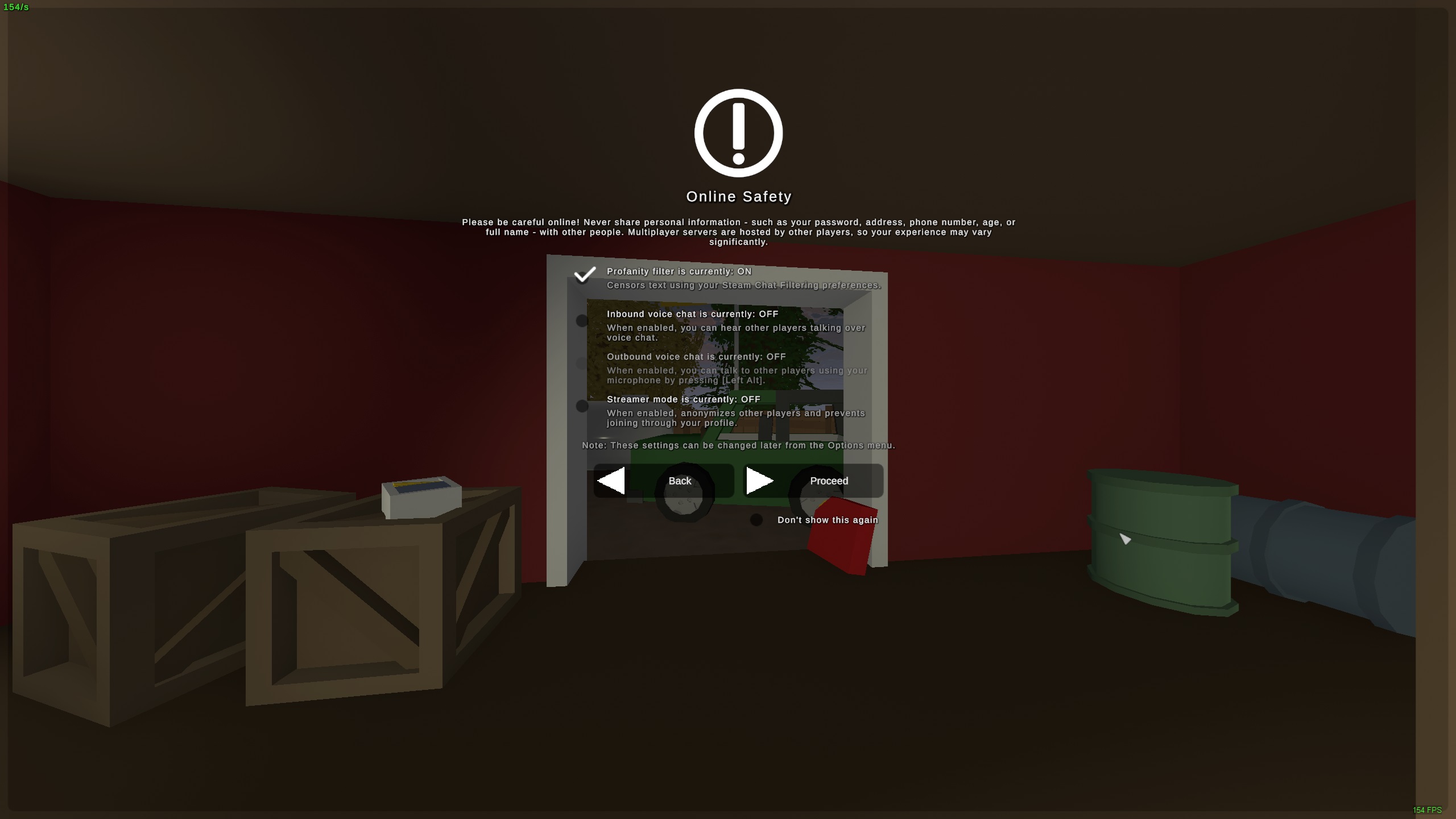
When playing on our servers.servers, Fromplease check both inbound and outbound voice chat. The profanity filter and streamer mode options may be configured at your discretion. You may then on,click youthe Proceed button. This pop-up can findbe that serverprevented in the serverfuture browser,by underchecking the historyDon't tab,show withoutthis needingagain tooption mess withbelow the filters.Proceed button.
Connect Directly
Connect Directly
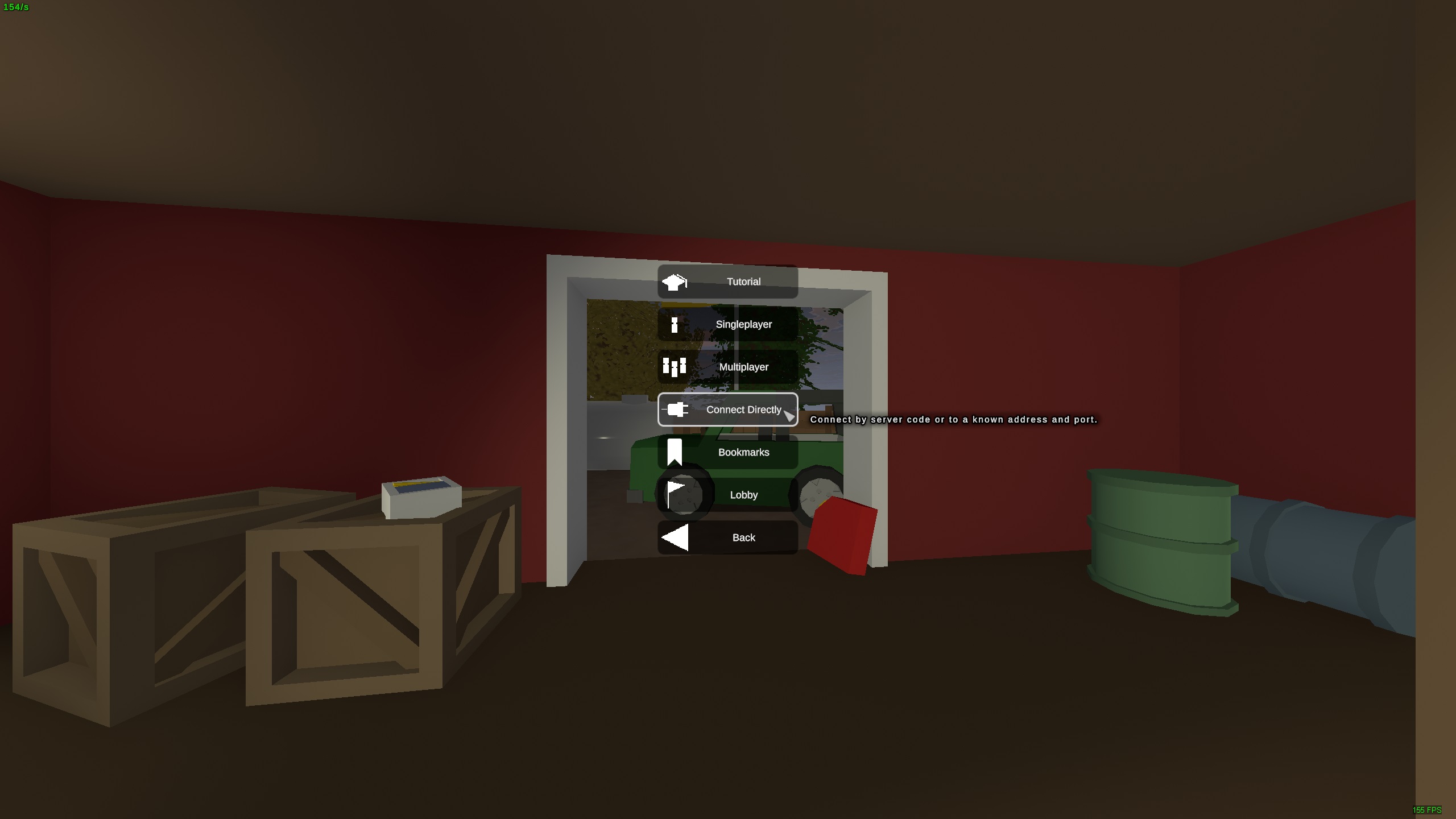
Step 1: Click Play, then Connect Directly.
After UsePlay from the main menu, click the Connect Directly button. If after you click this button, you see the Online Safety Warning pop-up, please refer to the section above.
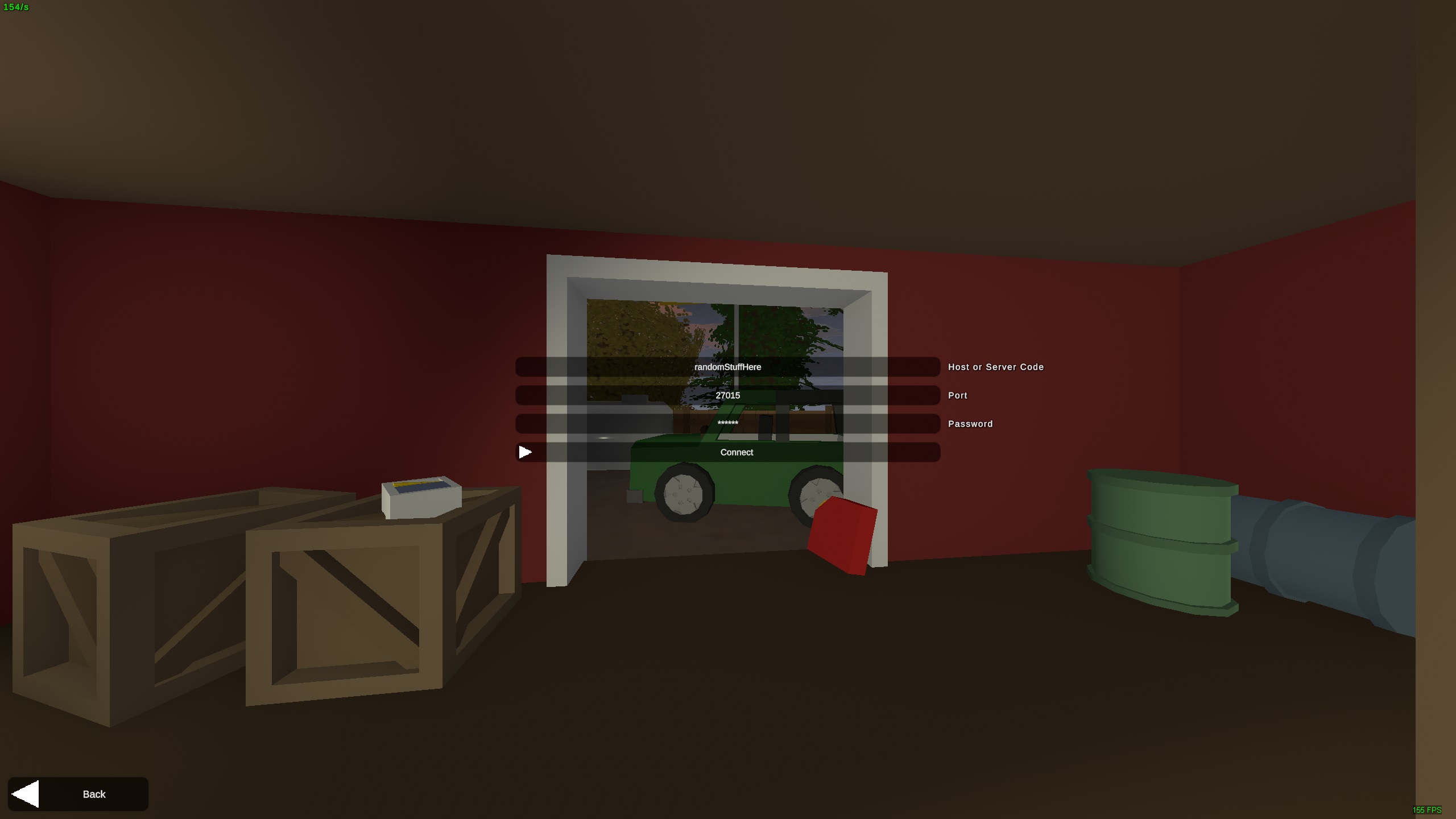
Step 2: Enter server details.
There will be three text fields: Host or Server BrowserCode, Port, and Password. Enter a server's information and then click the Connect button to connect to that server.
Use Server Browser
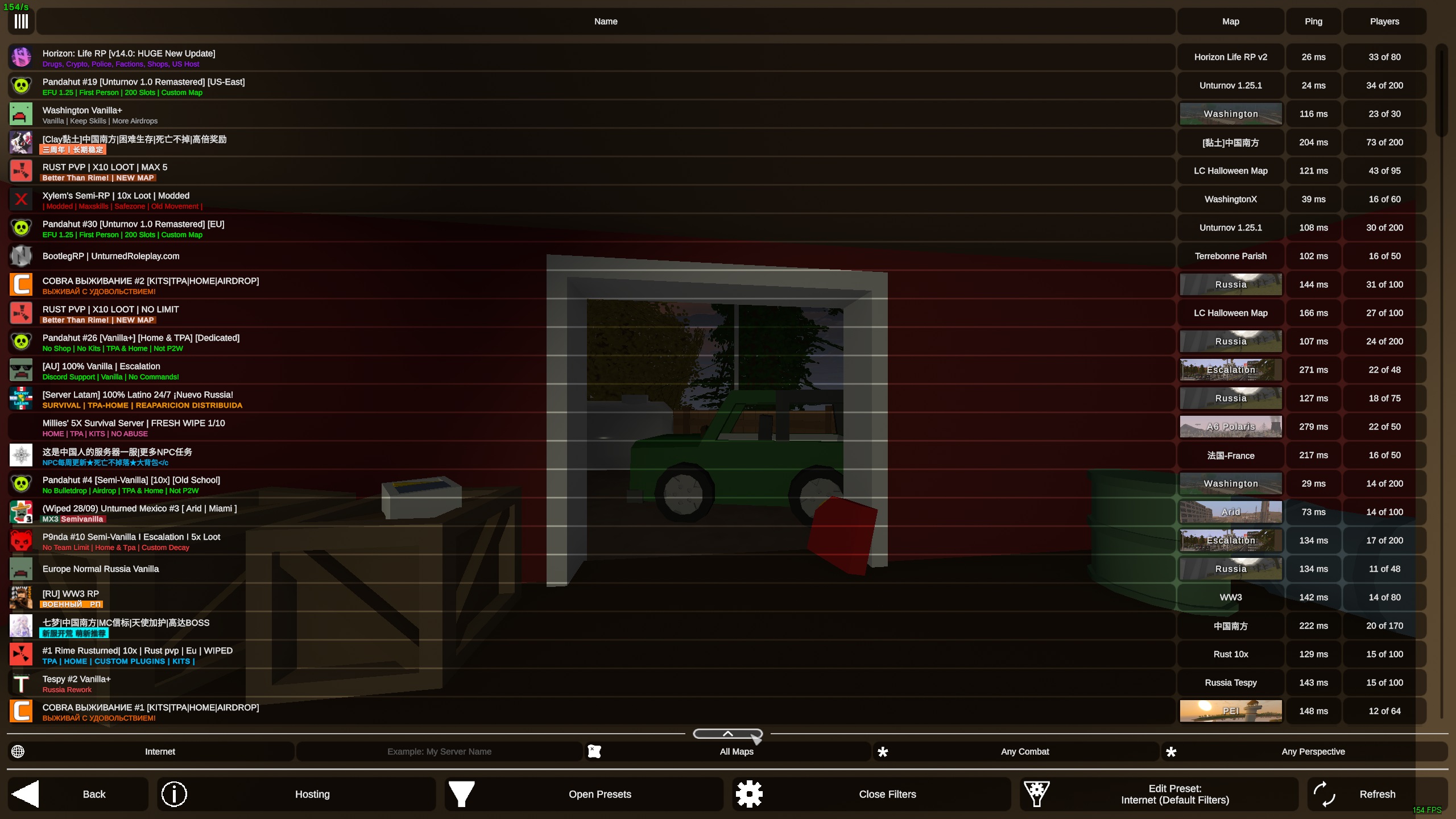
Unturned's server browser is more complicated than most games. When connecting via the server browser, please carefully read the instructions in this section and reference the included screenshots to verify your settings are correct.
Step 1: Click Play, then Multiplayer.
After clicking Play from the main menu, click the Multiplayer button. If after you click this button, you see the Online Safety Warning pop-up, please refer to the section above explaining this pop-up.
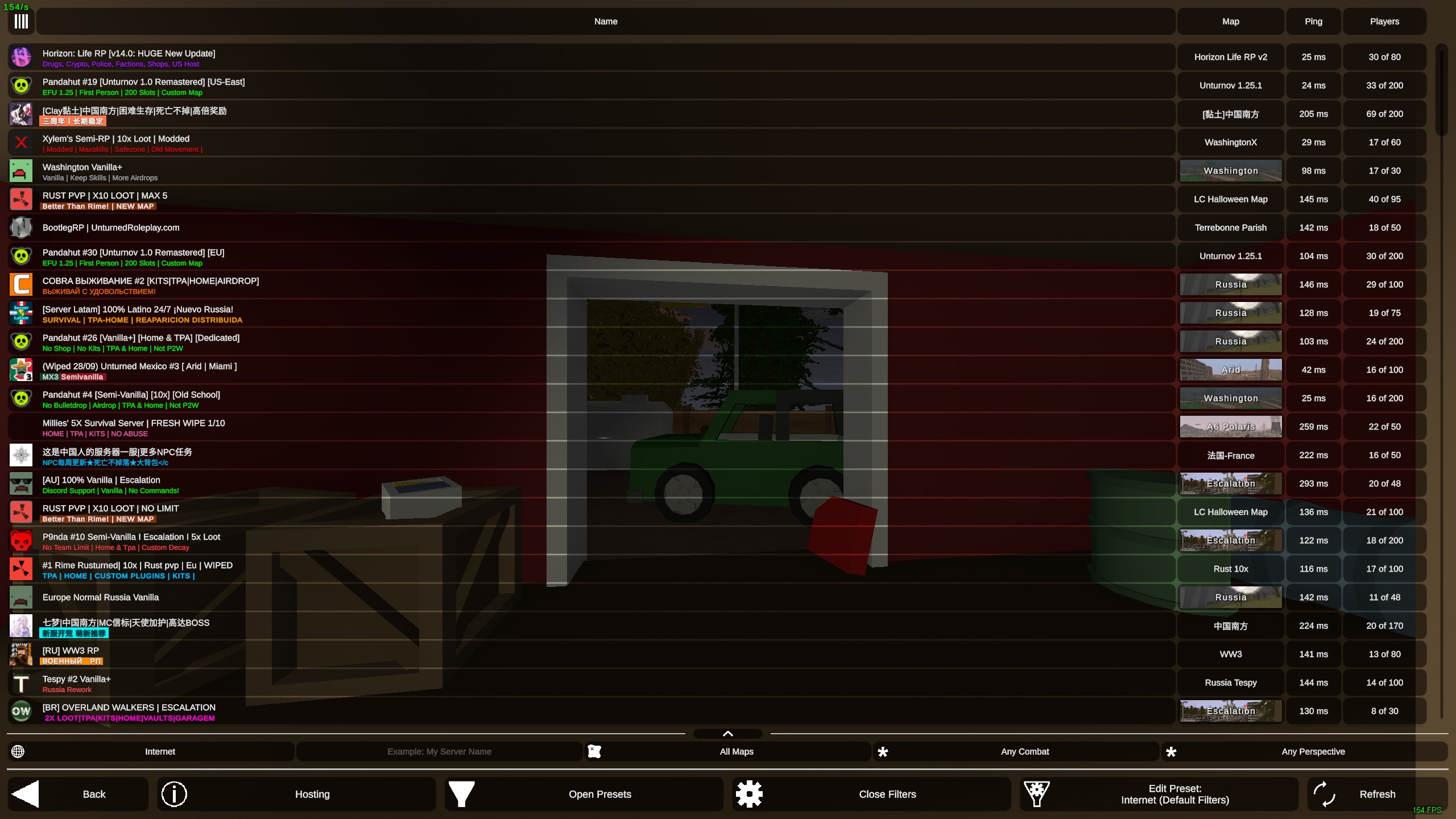
Step 2: ModifySet Filtersfilters.
Unturned has a complex server filtering systemsystem. whichThis is greatuseful if you're looking around for servers with the exact settings you want to play with,with but it can cause problems for us when we're looking for a specific server, such as the ones we host.server. Even if just one filter setting is not set correctly, the server you're looking for will not show. Our servers will not show when using Unturned's default filters.
Substep 1: Ensure filters are set to defaultInternet (Internet)Default Filters).
You can see your current filter preset at the bottom-right of the screen.screen, just to the left of the Refresh button. This should say Internet (Default Filters). If it does, proceed to Substep 2.

If this says anything else, click it andto thenopen clickthe preset menu. On the left side of this menu, there will be a list of presets. Click the Internet (Default Filters) preset. This will refresh the filters to be the defaults. Click Back at the bottom-left and then recheck that the current filter is now Internet (Default Filters).
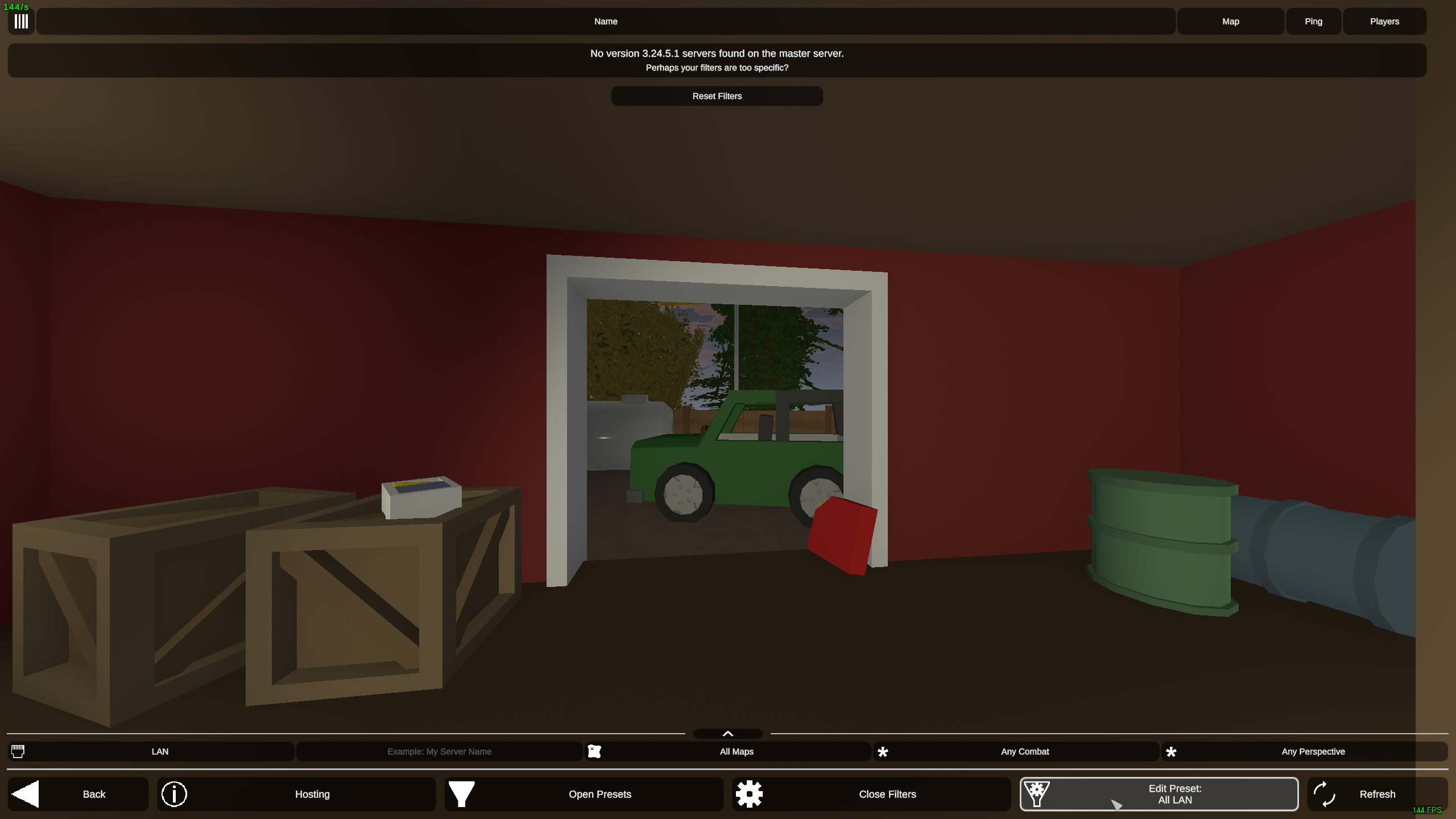
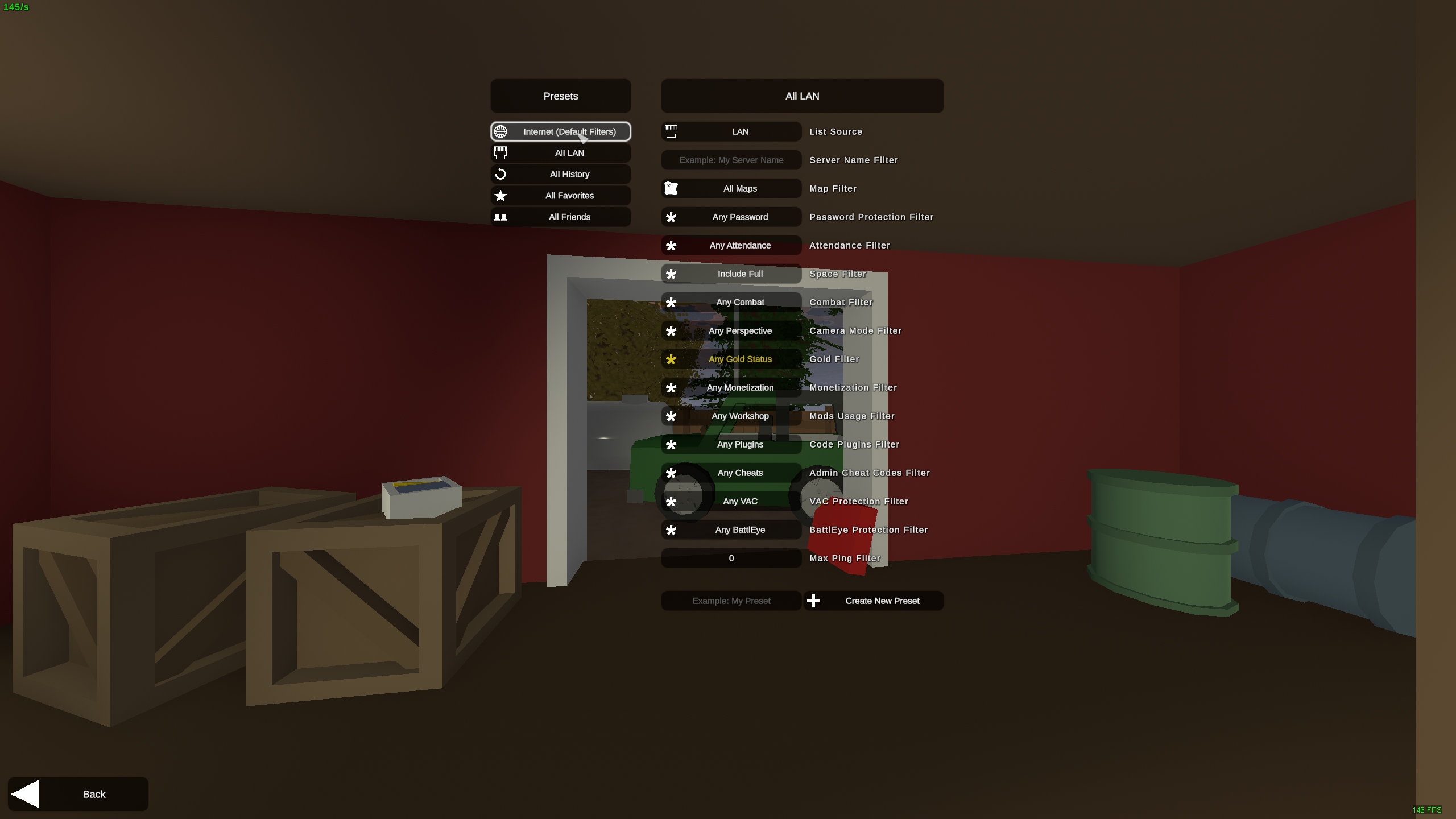
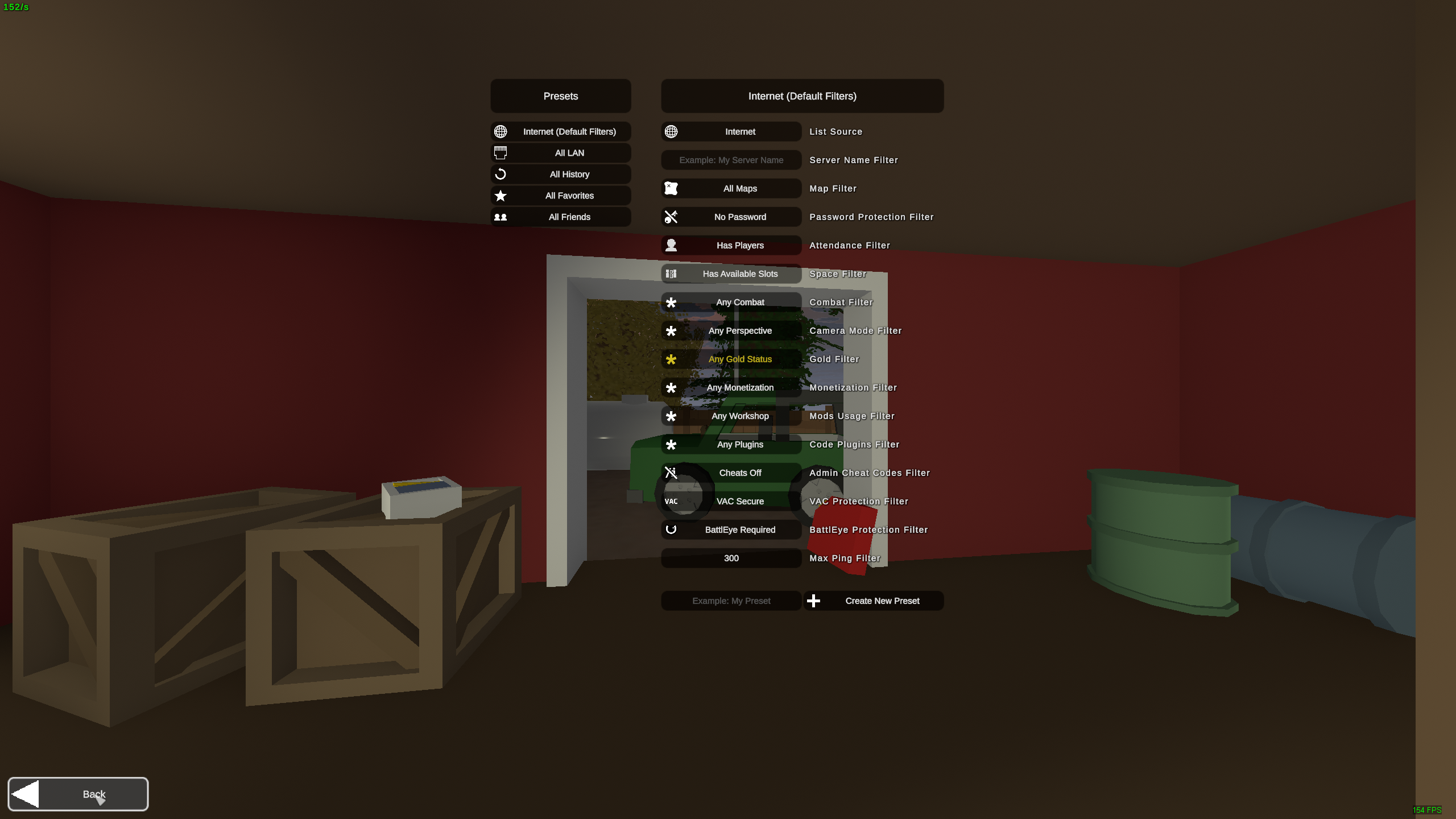
Substep 2: Switch password filter to Has Password.
Our Unturned servers use passwords and the default filters only show servers without passwords. ToFirst, changemake sure the filters are visible. You should see a single horizontal row of filters just below the server list. Just above these filters, there is an up arrow that will show all of the filters when clicked. Click this filter,button to expand the filters menu.
If you do not see the up arrow nor the single horizontal row of filters, simply click the SimpleOpen Filterslocated atnear the bottom-middlecenter of the serverscreen.
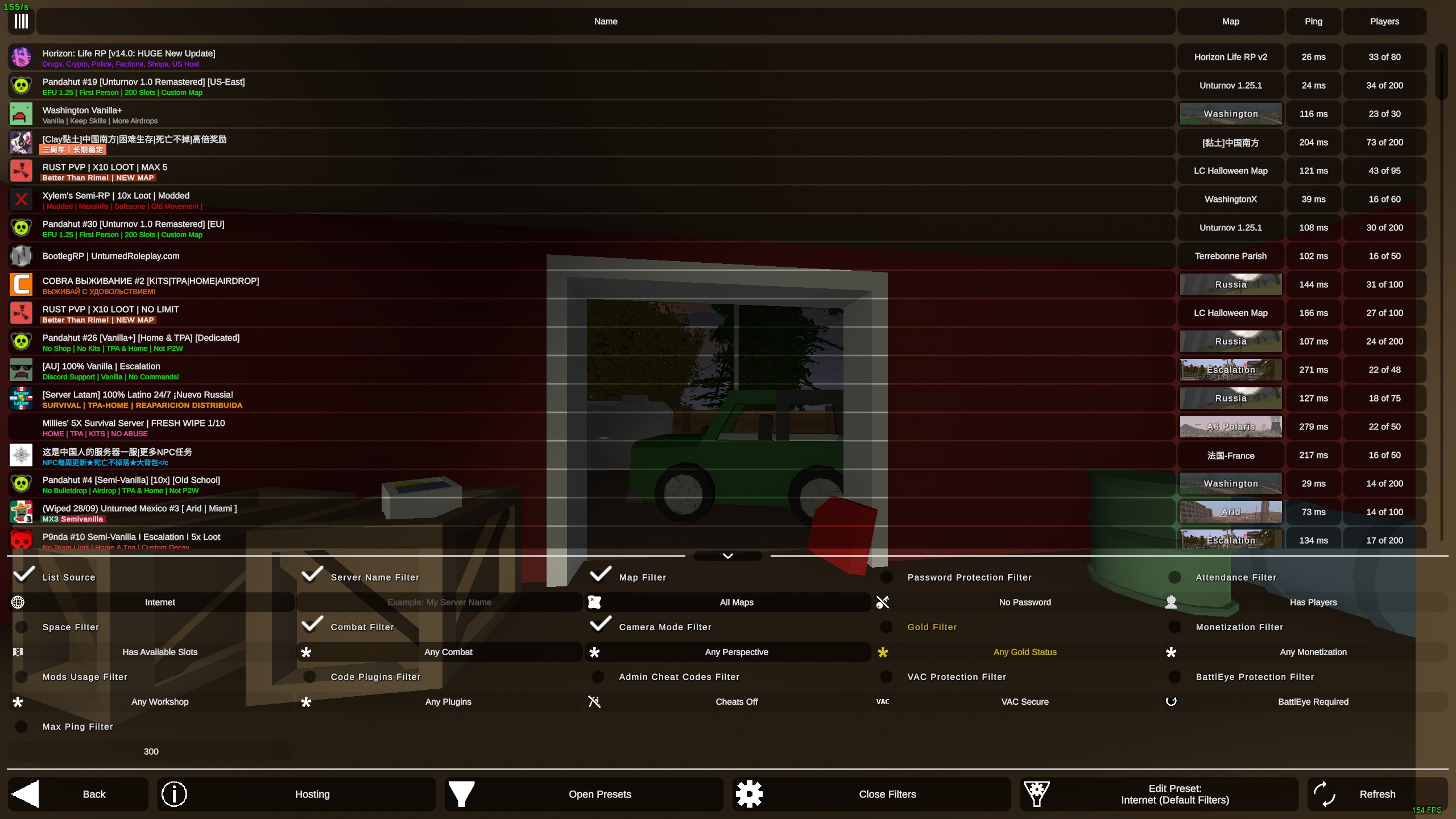
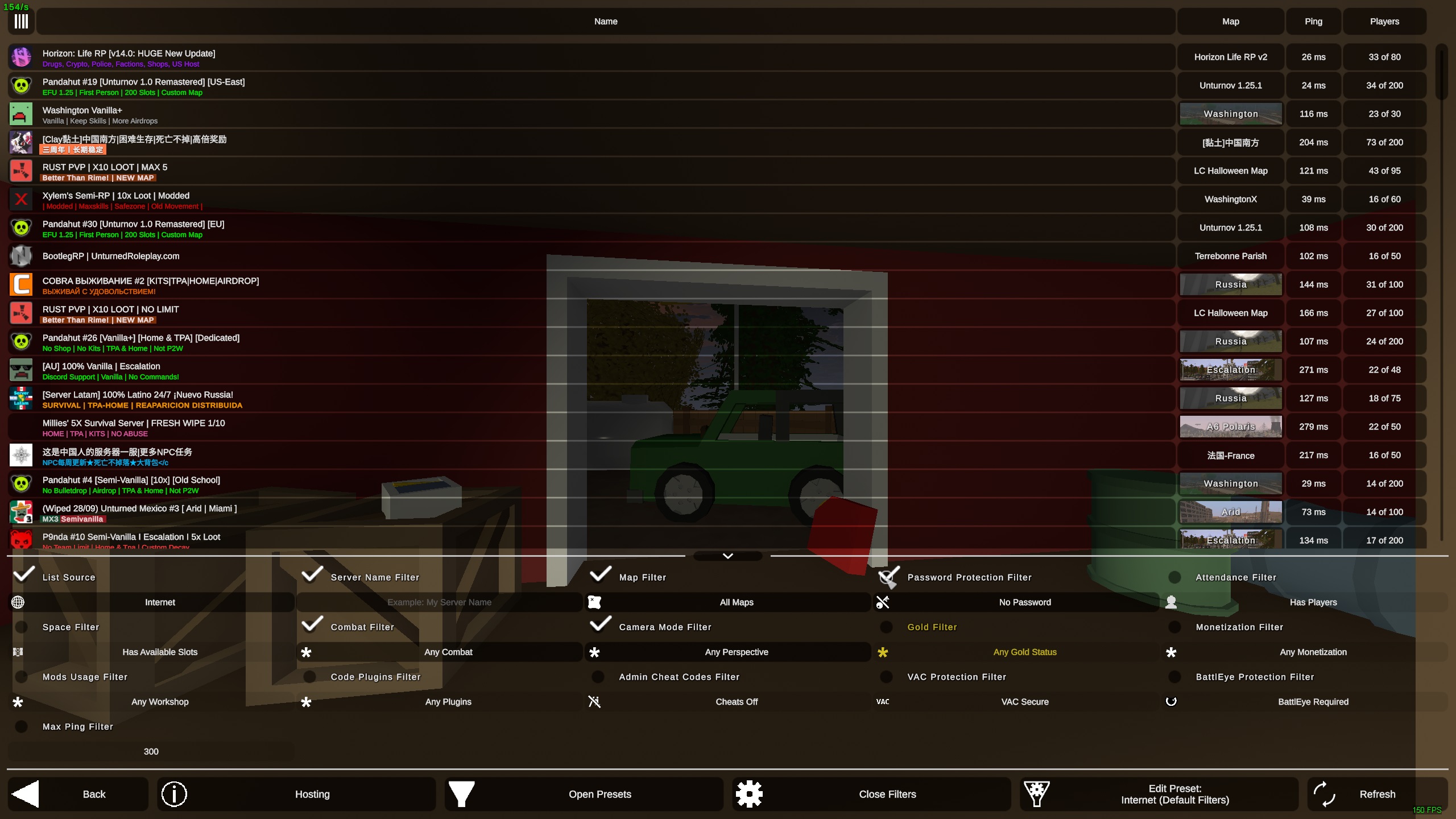
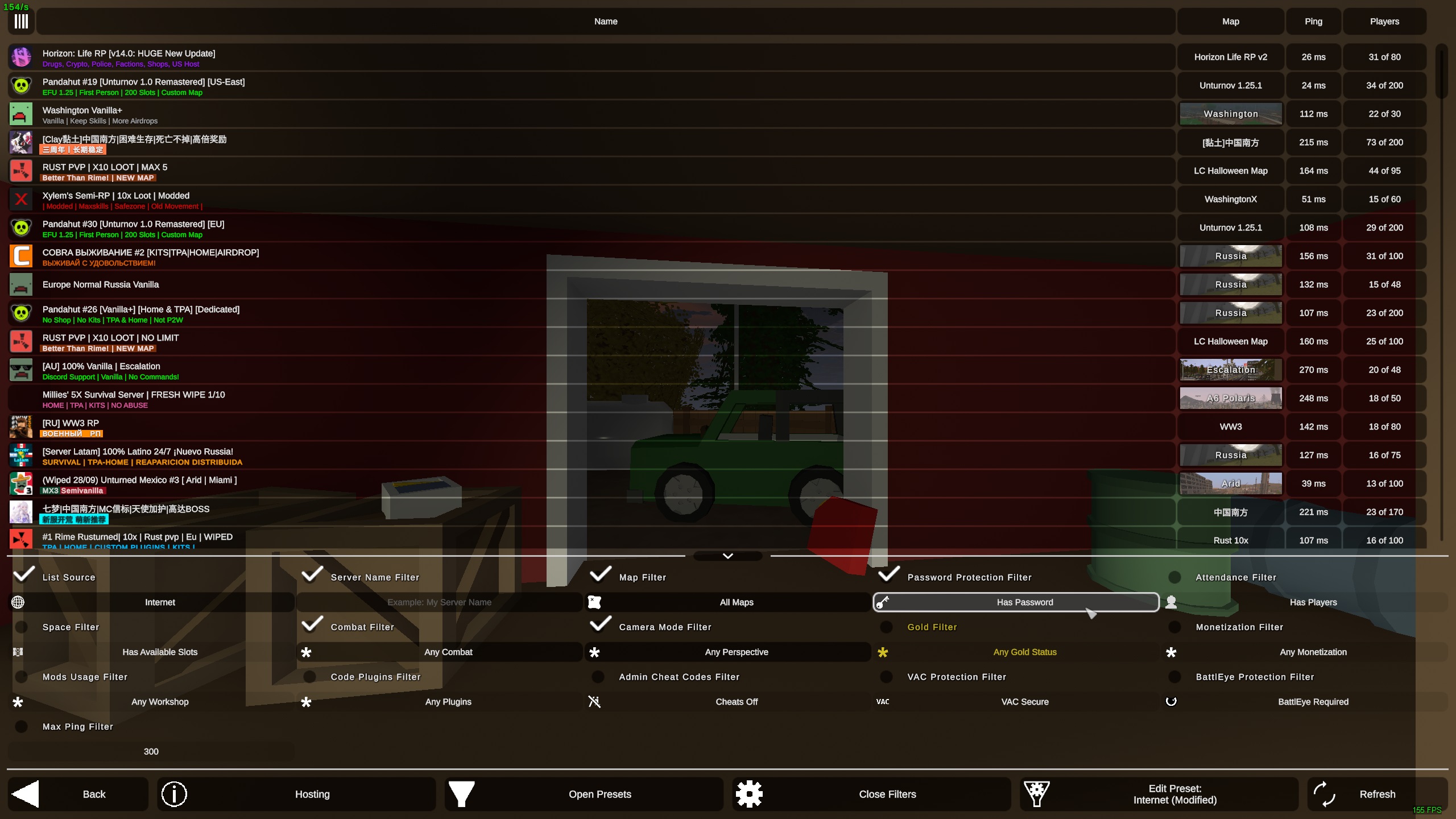
Now that all of the filters are visible, check the Password Protection Filter. This will showunlock you every filter. Thethe password filter isjust located on the second column from the right, and should currently say No Password.below. Click this filter until isit shows Has Password.Password.
Substep 3: Refresh.
Now that the filters are set properly, click the Refresh button at the bottom-right. This will refresh the list of servers using our new filter settings.
Step 3: Find then click on the desired server.
After refreshing with the Has Password filters, only a few servers will populate on the server list. You should see all of our servers unless they have been specifically configured to not show on the public server list. Click the desired server to connect to it.