
Connect to a Minecraft Server
This article explains how to connect to a Minecraft server. Before you connect to a server, you should add it to your Multiplayer server list.
Add a Server to Your Multiplayer List
Step 1: Click the "Multiplayer" button.
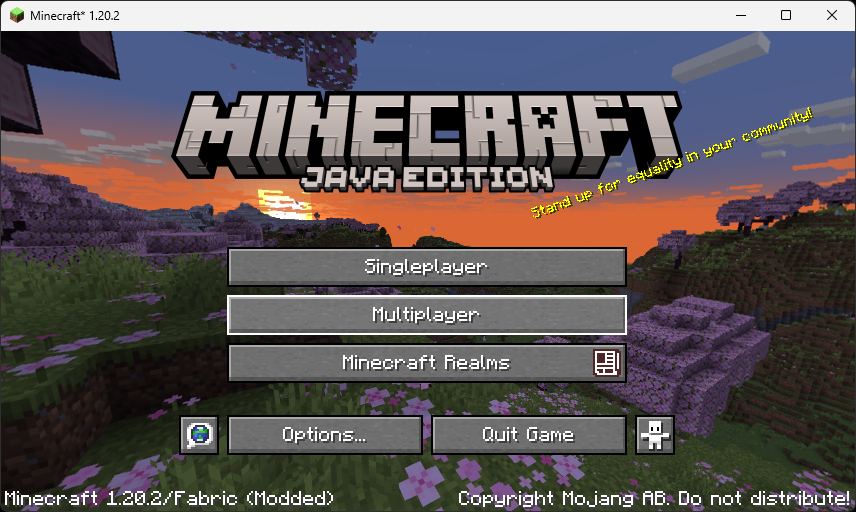
If you see a warning about third-party online play, click the "Proceed" button.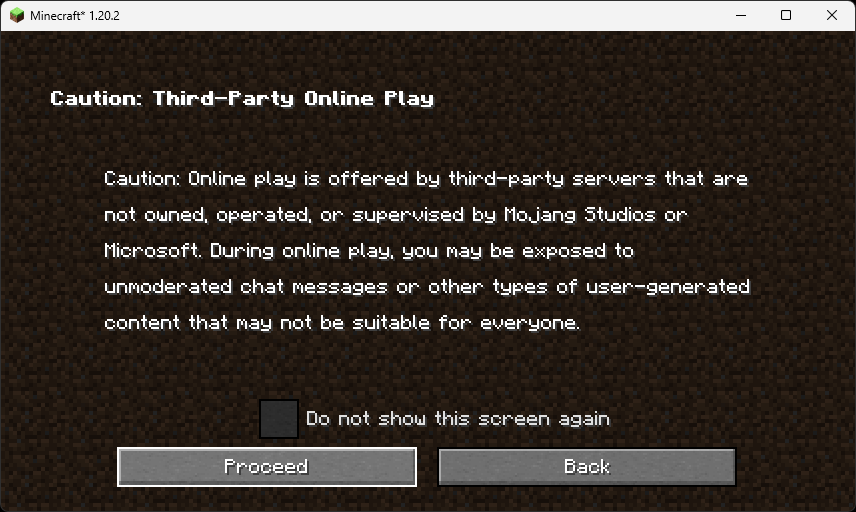
Step 2: Click the "Add Server" button.
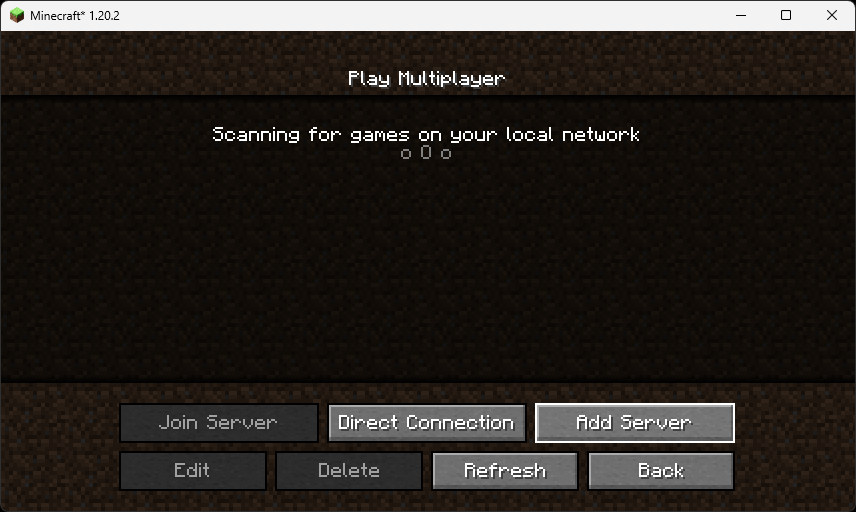
Step 3: Enter the server address and a descriptive name.
If the server uses a custom port, add a colon followed by the port number to the address. For example, if the address above used port 12345, use 420.69.666.404:12345.
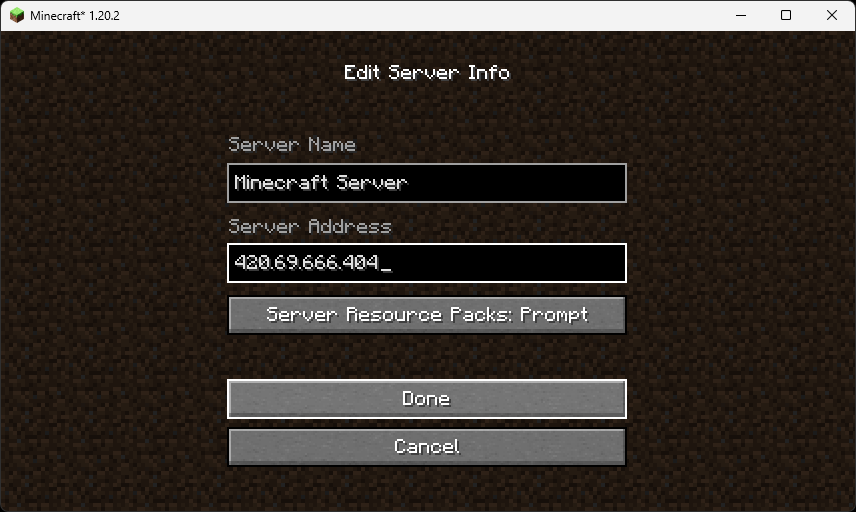
Step 4: Done!
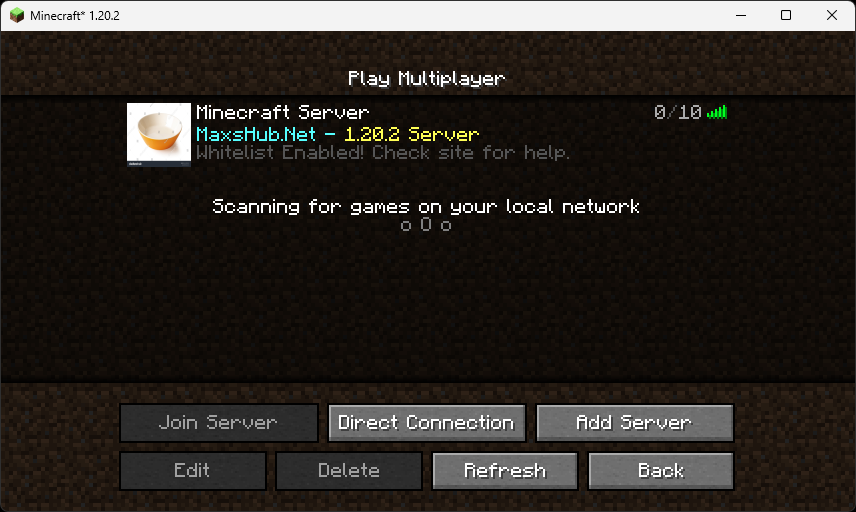
You can connect to a Minecraft server in either of the following ways:
- Double-click the server on the list.
- Click the server in the list and then click the Join Server button.
- Click the server in the list and then click the grey, right-pointing arrow that appears above the server icon (shown on Step 4 above).
- Click the Direct Connection button and enter the IP address of the server. If the server uses a custom port, add a colon followed by the port number to the address. For example, if the address
420.69.666.404used port12345, use420.69.666.404:12345.
No Comments